
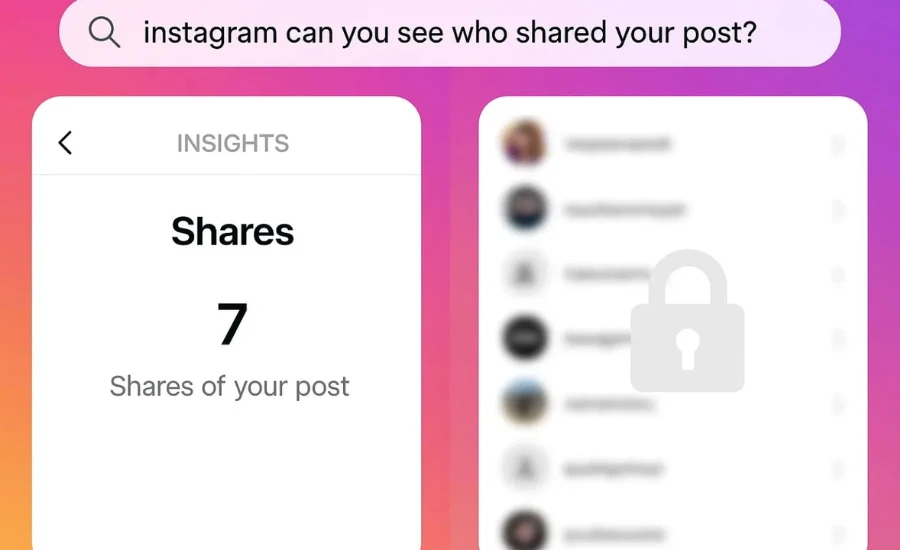
Instagram does not show you a list of specific usernames who shared your post. That information is private by default and protected by Instagram’s privacy settings. What Instagram does show you is the total number of shares — but not who did the sharing, unless they share directly to their Story and tag you. This article explains exactly what you can and cannot see, how to find the information that is available, and what the numbers actually mean.
Quick Reference Table
| Feature | Available? |
|---|---|
| Total share count for your post | Yes — visible in Insights |
| Names of people who shared your post via DM | No — not available |
| Names of people who shared to their Stories | Only if they tag you |
| Share count visible without a Professional account | No — requires Creator or Business account |
| Third-party apps that reveal sharers | No — these do not work and violate Instagram’s Terms |
| Notification when someone shares your post | Only if they share to a Story and tag you |
What Instagram Actually Shows You
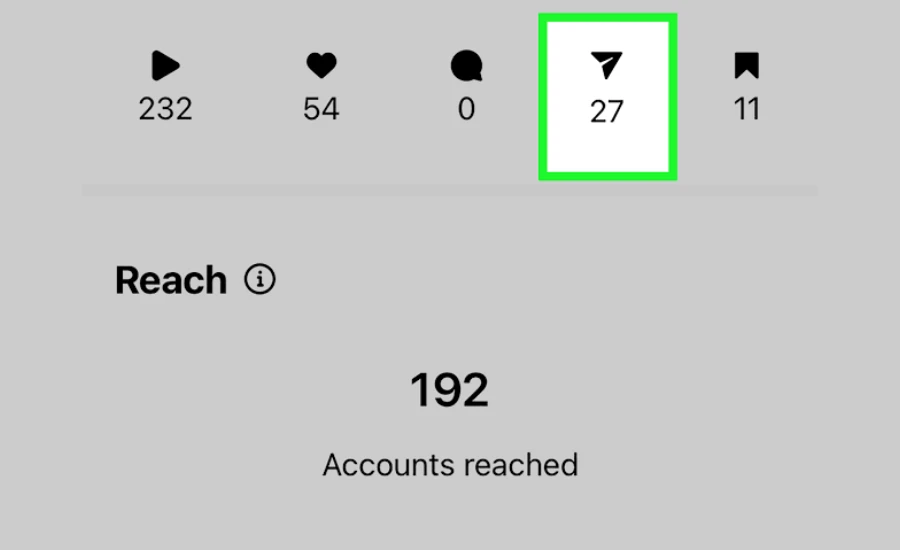
Instagram shows the total number of times your post has been shared — this number appears in your post’s Insights. It counts every time someone tapped the paper plane icon and sent your post to someone else via Direct Message, saved it to their Story, or shared it to another platform. The number is a count, not a list.
You will not see usernames. Instagram deliberately keeps share activity private to protect users’ behavior from being tracked by content creators without consent. This is a platform policy decision, not a technical limitation.
How To Find Your Share Count (Step by Step)
Requirement: You must have a Creator account or Business account. Personal accounts do not have access to Insights. Switching is free and takes about 30 seconds in settings.
For a Feed Post:
- Open Instagram and go to your profile
- Tap the post you want to check
- Below the post, tap “View Insights” (visible only to the post’s author)
- Scroll through the Insights panel
- Look for the paper plane icon — the number next to it is your total share count
For a Reel:
- Open the Reel you posted
- Tap the three-dot menu (⋯) in the bottom right
- Select “Insights”
- Find the share metric in the breakdown
For a Story (while it is still live or within 24 hours):
- Open your active Story
- Swipe up on the Story
- You will see viewer activity, including shares if any occurred
The One Way You Can See A Specific Sharer
If someone shares your post to their own Instagram Story and tags you in it, you will receive a notification. The notification will appear in your activity feed and also in your DMs under “Story Mentions.” You can tap the notification to see their Story and who posted it.
This only works if:
- They actively chose to tag your account in the Story
- Their account is public, or they follow you if their account is private
- The Story is still active (Stories disappear after 24 hours unless saved as a Highlight)
If someone shares your post to their Story without tagging you, you will not be notified and will not see their name.
What The Share Count Includes
The share count in Insights counts every type of share:
- DM shares — someone sent your post to another user or group in a Direct Message
- Story shares — someone shared your post to their own Story (with or without tagging you)
- Link copies — someone copied the link to your post to share outside Instagram
- Cross-platform shares — someone shared your post to another app such as WhatsApp, Twitter/X, or Facebook using Instagram’s built-in share options
All of these count as one share each toward your total. You cannot see a breakdown by share type in most account levels.
Why Third-Party Apps Do Not Work
Many apps and websites claim they can show you who shared your Instagram posts. They cannot. Instagram’s API does not provide this information to third-party developers. These apps either:
- Show you fake or randomly generated data
- Request your Instagram login credentials, putting your account at risk
- Collect your personal data without disclosing how it is used
- Violate Instagram’s Terms of Service, potentially getting your account suspended
Do not enter your Instagram username or password into any third-party app claiming to show who shared your posts. No legitimate tool can deliver this information because Instagram simply does not make it available.
How To Get More From Your Insights
If your goal is to understand how your content spreads, the share count combined with other Insights metrics tells a useful story.
A high share count relative to likes suggests your content resonated deeply enough for people to send it to others — a stronger signal of genuine engagement than passive likes or views.
Compare share counts across your posts to identify which content types, topics, or formats drive the most sharing. Posts that get shared frequently are often those that are informative, funny, emotionally resonant, or practically useful.
Track reach alongside shares. If your reach is significantly higher than your follower count, shares are likely how your content spread beyond your immediate audience.
You may also like Illinois Public Act 101-0038 Task Force
FAQ
1. Can I see who shared my Instagram post?
No. Instagram does not provide a list of names of people who shared your post. You can only see the total number of shares in your post’s Insights.
2. Do I need a special account type to see share counts?
Yes. You need a Creator account or Business account. Personal accounts do not have access to Instagram Insights. You can switch account type for free in Settings under Account.
3. Will I get a notification when someone shares my post?
Only if they share your post to their Instagram Story and actively tag your account. You will then receive a notification in your activity and a DM mention. If they share without tagging you, or share via DM to another user, you will not be notified.
4. Does my share count include DM shares and Story shares?
Yes. The share count includes all types of sharing: DMs, Story shares, link copies, and cross-platform shares to other apps.
5. What if my share count shows zero?
Either no one has shared the post yet, or you are viewing it from a personal account that does not have Insights access. Switch to a Creator or Business account to verify.
6. Can someone share my post if my account is private?
If your account is private, your posts can only be seen by approved followers. They can still share your post to their Story or via DM, but only other followers of yours will be able to see it. Non-followers who receive a DM share will see a placeholder saying the post is from a private account.
7. Can I turn off sharing on my posts?
You can limit who can share your posts. Go to Settings → Privacy → Story → Sharing and select your preferred sharing options. You can also disable resharing of your posts to Stories from this menu.
8. Do Story views show who shared my Story?
Swipe up on your active Story to see a list of viewers. This list shows everyone who viewed your Story while it was live. It does not specifically label who then reshared it from their own view, but the share count appears separately.
9. Why are third-party apps that claim to show sharers not reliable?
Instagram’s API does not make sharer identity available to third-party developers. Any app claiming to show who shared your post is either showing fake data, harvesting your credentials, or both. Avoid entering your Instagram login information into any such app.
10. Is the share count the same as the reach count?
No. Share count shows how many times the post was forwarded. Reach shows how many unique accounts saw your post. Shares can drive reach, but they are different metrics.
11. How do I find Insights for a Reel specifically?
Open the Reel, tap the three-dot menu (⋯), and select Insights. Reel Insights include plays, likes, comments, shares, saves, and reach.
12. Can I see who saved my post instead?
No. Instagram also does not show who saved your posts. You can see the total number of saves in Insights, but not which accounts saved them, for the same privacy reasons that apply to shares.